Understanding Poster Design Basics
To create an effective poster, it is essential to grasp the fundamental principles of poster design. These foundational elements include visual hierarchy, balance, color theory, and typography, all of which contribute to the overall effectiveness of a poster in communicating its intended message.
Visual hierarchy is crucial in guiding the viewer’s attention toward the most important information. It involves arranging elements in a way that they are perceived in a specific order. Larger fonts for headlines, for example, signal the viewer to focus on these elements first. Additionally, using contrasting colors can further enhance this hierarchy, making key details stand out more prominently.
Balance refers to the distribution of visual weight in a poster. A well-balanced design avoids overwhelming the viewer with too much information in one area while leaving other parts bare. Designers often use symmetrical balance, where elements are evenly distributed, or asymmetrical balance, where different elements with varying visual weights complement each other. Striking the right balance can help maintain viewer engagement and visual appeal.
Color theory also plays a vital role in poster design. Colors evoke emotions and can significantly influence perception. For example, warm colors such as red and orange can create a sense of urgency or excitement, while cooler tones like blue and green often convey calmness and reliability. Understanding how to combine colors effectively is fundamental in crafting a visually appealing poster.
Lastly, typography should not be overlooked as it sets the tone for the entire design. The choice of fonts conveys personality and mood; thus, selecting readable and appropriate typefaces is necessary. Considerations such as font size, spacing, and alignment can dramatically affect the overall readability and aesthetics of the poster, ensuring your message is communicated clearly.
In summary, mastering these basic principles of poster design will enable designers to create engaging and effective designs that successfully convey their intended messages.
Navigating the Canva Workspace
Canva is a user-friendly graphic design platform that provides various tools and features to create visually appealing posters. To get started, users need to familiarize themselves with the workspace offered by Canva, which is designed for ease of navigation.
Upon logging into Canva, you will be greeted by the dashboard. Here, you can find various options tailored for different design needs. The interface is divided into a sidebar on the left, showcasing different sections including templates, projects, and more. The top menu provides access to additional functionalities such as file management, sharing options, and account settings.
To begin your design journey, navigate to the “Templates” section in the left sidebar. Canva offers a multitude of pre-designed templates specifically geared towards posters. You can browse these options based on categories, styles, and themes, making it easier to find the perfect starting point for your project.
Once you select a template, you will be redirected to the editing workspace. On the right side, you will see your chosen template displayed in a larger view where you can make adjustments. Here, you can add new elements, choose images, and customize text. The top toolbar contains various editing tools, such as font settings, color palettes, and alignment options, allowing for precise modifications.
The “Elements” feature, located on the left sidebar, is particularly useful as it provides access to shapes, icons, and illustrations that can enhance your poster design. Additionally, the “Uploads” section allows you to integrate your own images, ensuring a unique touch to your creations.
To help navigate through Canva’s diverse design options, take advantage of the resource center which offers tutorials and guides tailored to users of all experience levels. Familiarizing yourself with these tools and sections will significantly enhance your ability to create stunning posters with Canva.
Creating Your Poster: Step-by-Step Guide
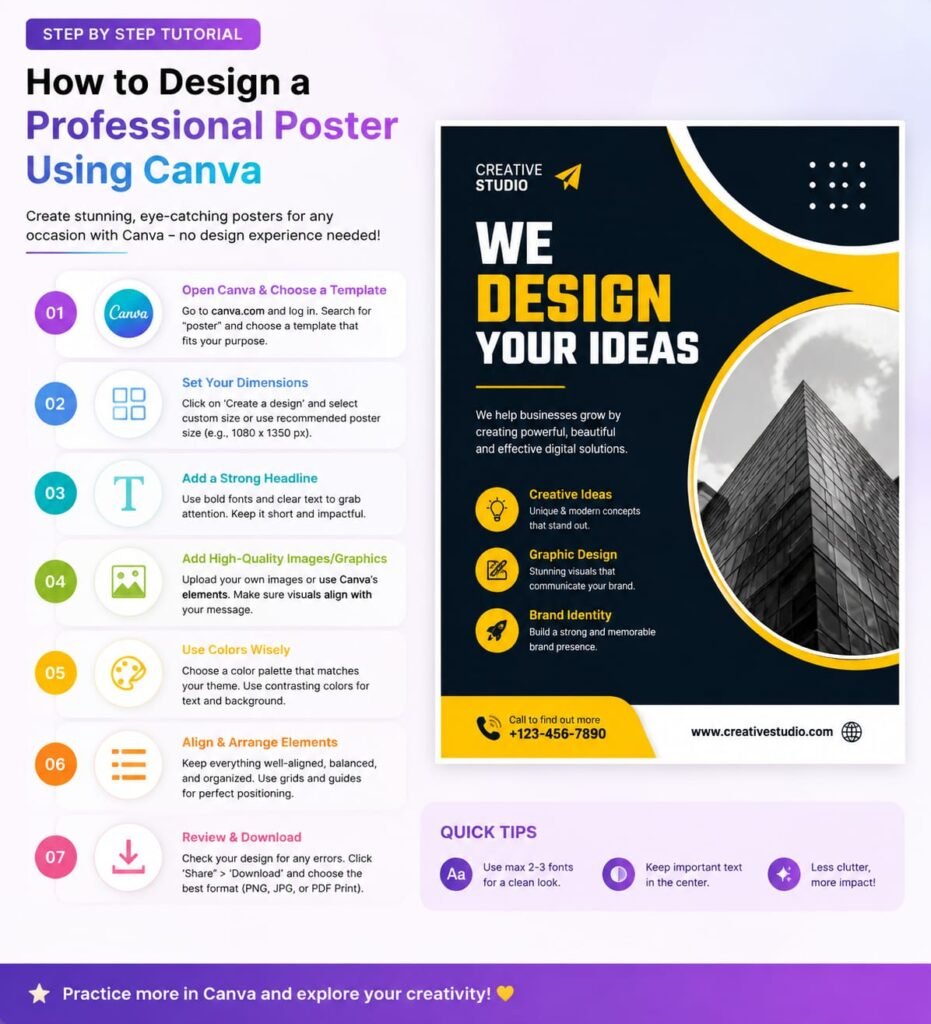
Designing a poster using Canva is an intuitive process that can yield impressive results with minimal effort. To begin, you should first access Canva’s website and sign in to your account or create a new one if you don’t have an account yet. Once you are logged in, you can navigate to the search bar and type in “poster” to view a wide range of poster templates that can serve as a foundation for your design.
After selecting a template that aligns with your vision, the next step is customization. Canva allows you to alter various elements of the template, starting with images. You can upload your own images by clicking on the “Uploads” tab or choose from Canva’s extensive library of photos and illustrations. Drag and drop the images into designated areas or replace existing ones to maintain a cohesive look.
Fonts play a crucial role in poster design. To change text, simply click on the existing text box to edit it. Canva offers a range of fonts, but it is important to choose one that reflects the tone of your poster while ensuring readability. You may also want to adjust the font size, color, and positioning to highlight key messages.
Color is another essential aspect of poster design. You can modify the background color or any graphic element by selecting it and then clicking on the color palette. To maintain visual harmony, use colors that complement each other. Canva also provides a color wheel for those who wish to explore color theory.
As you finalize your design, consider the overall composition. Ensure that the poster does not look cluttered; utilize white space effectively to guide the viewer’s eye. Preview your poster to assess each element collectively and make adjustments as necessary.
Finally, once you are satisfied with the design, you can download your poster in various formats, such as PDF or PNG, for printing or sharing online. Remember to check the dimensions to ensure that it will look great in both digital and physical formats. By following these straightforward steps, you can create a visually appealing and professional-looking poster in Canva with ease.
Final Touches and Downloading Your Poster
Once you have completed your poster design in Canva, it is essential to review the overall presentation to ensure it meets your expectations and aligns with the intended purpose. Begin by checking the alignment of all elements on the poster, including text, images, and graphics. Utilize Canva’s alignment tools to help achieve a clean, organized look. Adjusting elements so they are evenly spaced can significantly improve the visual appeal and make the information more accessible to viewers.
Next, pay attention to the spacing between different sections and graphical components. Adequate spacing enhances readability and allows each element to stand out without feeling cluttered. Adjust margins and padding within text boxes or around images to create a harmonious balance throughout the poster. Also, consider the color contrast and font legibility; these factors are crucial in ensuring that your message is effectively communicated.
After making the necessary adjustments, it is time to download your completed poster. Canva provides multiple format options suitable for various needs. If your poster is intended for print, consider downloading it in PDF format, which maintains the highest quality for printed materials. For digital distribution on social media or websites, formats such as PNG or JPEG are optimal, as they provide good resolution and are easily shareable. When downloading, ensure that you select the correct size and resolution based on where the poster will be published or printed.
In summary, taking the time to finalize your design, ensuring proper alignment and spacing, is crucial in creating a professional-looking poster. By downloading your poster in the appropriate format, you can effectively distribute your work, whether in print or digitally, sharing your design with a wider audience.